
By Mayer Seidman
Our UX team recently hosted a Community of Practice session with our internal team. These sessions give us a chance to share a topic we care about with our peers. I led this one on designing data experiences, and why they deserve the same design thinking as everything else we build.
For a checkout flow or an onboarding screen, we naturally ask who the user is, what problem they're trying to solve and what they're trying to get done. With dashboards, those questions sometimes get skipped, and the focus shifts to fitting in as much data as possible.
The Exercise
We looked at three mock data screens and spent eight minutes on each, answering the same four questions. Could we tell if it was good or bad news? Where did our eyes go first? What would we never look at? What would we actually do next?
You'll notice none of the questions are about color palettes or chart types. They're about the person looking at the screen, and whether the screen is actually helping them. Let's dig into the one that sparked the most discussion.
The Screen: An Ad Campaign Table
This one will look familiar to anyone who has worked on an analytics tool. Fifteen ad campaigns, 12 columns (out of 34 available!), and numbers everywhere: impressions, clicks, CTR, CPC, spend, budget, pacing, conversions, CPA, ROAS and more.
The Questions From the Exercise
Good news or bad news? This got the most honest answers of the day. One person said they could look at it all day and still have no idea. Another said all they could tell was that there was some green and a lot of numbers.
Where did your eyes go? The status column, because "Active" was bold and green in almost every row. So the loudest thing on the screen was one of the least useful, since nearly every campaign was active.
Everything that mattered was on the screen. It was just hard to spot. One campaign had already used up its budget. Another was paying $105 for every conversion. A video campaign was bringing in less than it spent. Each sat in the same gray rows as everything else, easy to miss.
What would you do? One answer stuck with me. Someone said they'd export it to Excel and build a heat map. Totally reasonable! But if someone's first instinct is to take the data somewhere else to make sense of it, the screen could probably be doing more for them.
Another person said it really depends on what the viewer's job is and what matters to them. I agree, and honestly that's most of what this post is about.
Before and After
So what would a dialed-in version look like? First, we have to pick a person. Let's say it's a performance marketer doing their weekly check-in, trying to decide where to put their money next week.
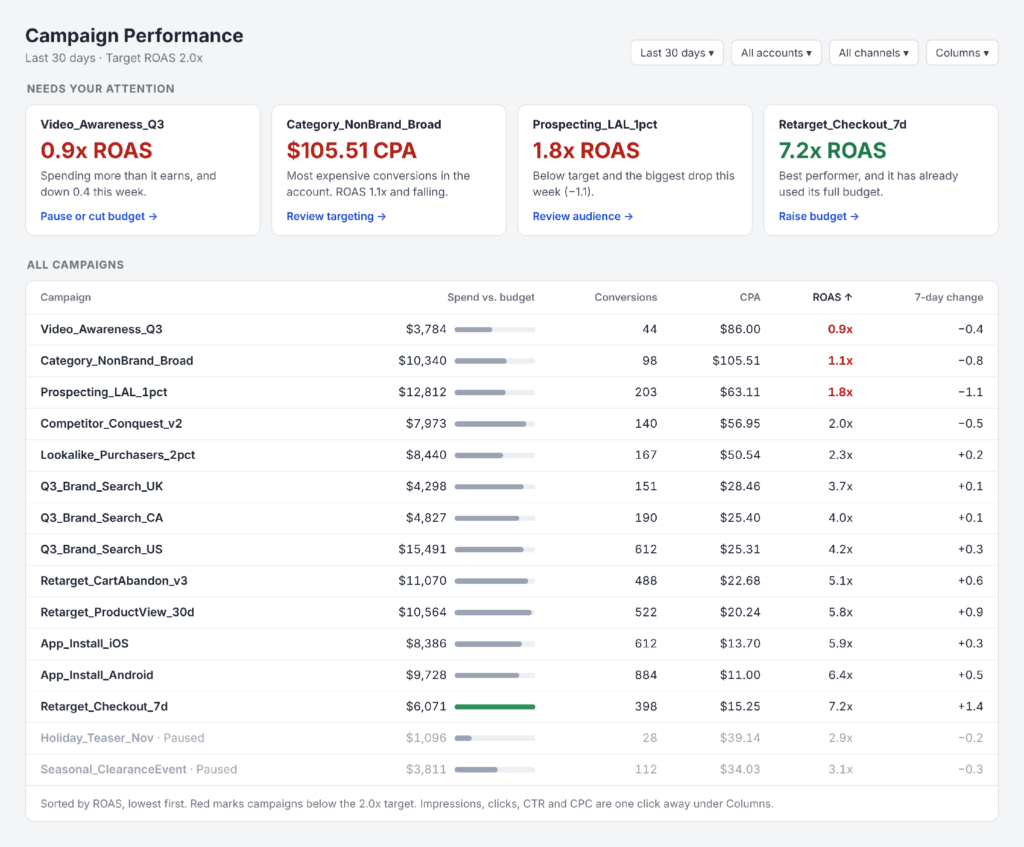
Here's a version designed for that person:
What changed:
- Lead with what needs action. Four cards up top: three campaigns losing ground and one winner that's out of budget. Each says why in plain words and what to do next.
- Give numbers a target. Return on ad spend (ROAS) is judged against a goal, so red has one clear meaning: below target.
- Sort by what matters. Lowest ROAS first, so problems float to the top instead of hiding in row 11.
- Show only what the decision needs. Impressions, Clicks, CTR and CPC are still there under Columns, just not in the way.
- Turn status down. Paused campaigns are grayed out at the bottom. Since most campaigns are active, that's assumed rather than repeated on every row.
- Make pacing visual. A bar against budget shows who's spent out at a glance.
It's the same underlying data. We just figured out who it was for first.
What All the Screens Had in Common
The other two screens in the session had a lot of the same problems.
- A support ticket queue showed 312 open tickets and a 6.4-hour response time, but without a goal it was hard to tell if that was good. Its most urgent item, a high-priority bug open for 11 days, looked just like a minor typo fix. And the status column said "Open" on every row.
- A weekly metrics report highlighted a record week of profile photo updates in a big banner, while a 14.6% drop in retention showed up in small text just below it.
Each screen was different, but in all of them it wasn't clear who the screen was for or what that person needed to do. Once that's figured out, the other decisions (hierarchy, color, which columns to show) get a lot easier.
Try It on Your Own Screens
The four questions from the session work as a quick gut check on any data screen you're designing. Better yet, ask someone who hasn't seen it:
- Can you tell if this is good or bad news in 3 seconds?
- Where does your eye go first, and is that the most important thing?
- What would you never look at?
- What would you do next?
If the answers surprise you, that's useful. Better to catch it now than leave your users to figure it out. Data deserves the same care as any other part of the experience
If your dashboards leave people hunting for answers—or exporting to Excel to find them—we'd love to take a look. DeveloperTown’s UX team can help you understand where people get stuck and design an experience that makes their next step clearer.